
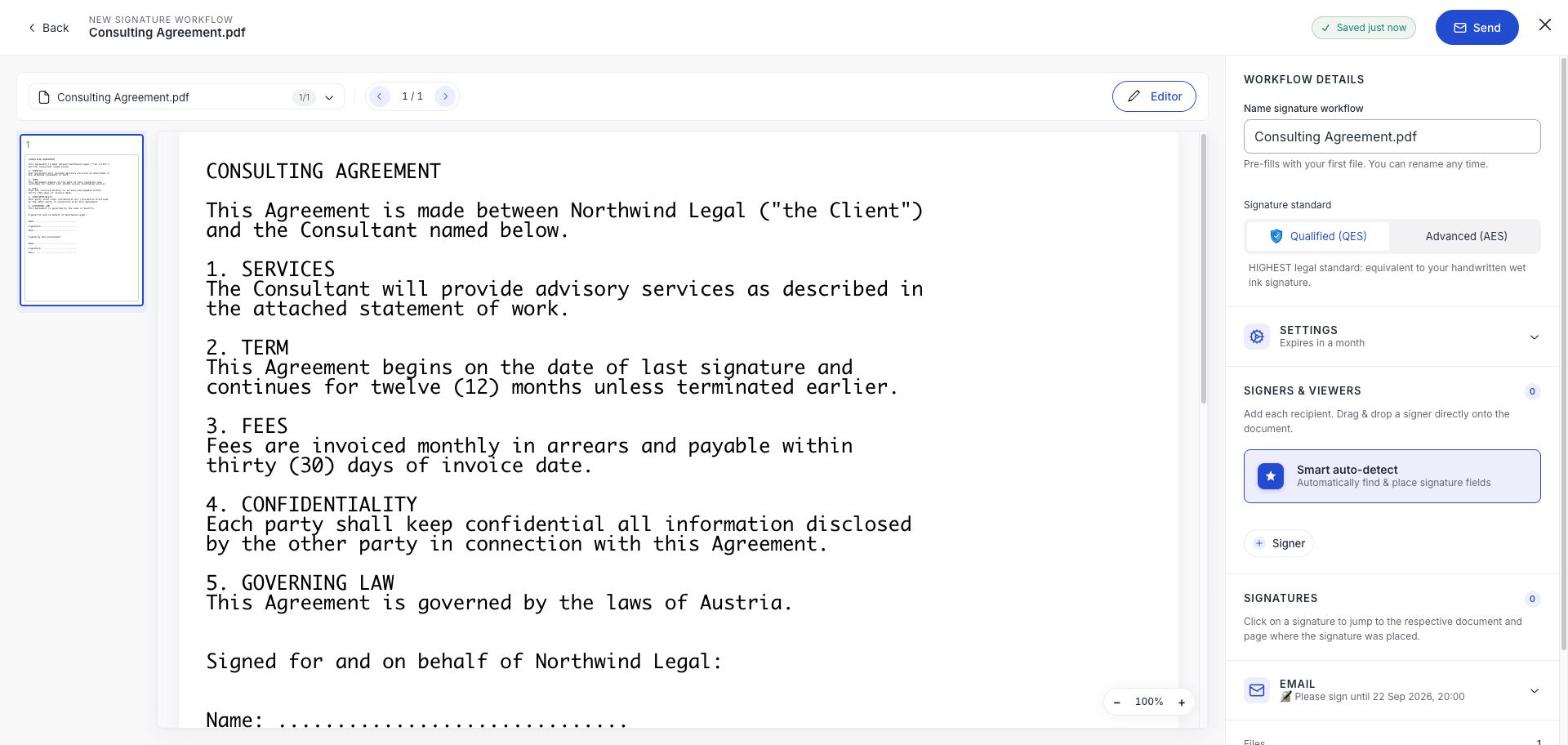
A signature workflow is one document, or a small stack of them, sent to the people who need to act on it. Most of what swipesign does lives inside this one screen, and a lot of it is easy to miss.
This page is the map. Each capability gets a paragraph and a link to the article that covers it properly.
- Documents per workflow
- Up to 5
- People per workflow
- Up to 15
- File size
- 200 MB each
- Cost to your recipients
- Nothing, ever
The four roles
Everyone you add gets a role, and the role decides what their link does. This is the single most useful thing to understand about the product.
| Role | What they do | Uses your signature allowance |
|---|---|---|
| Signer | Reads and signs. The normal case. | Yes |
| Viewer | Gets a link and can read, but has nothing to sign. | No |
| Reviewer | Approves or rejects before anyone signs. An internal check. | No |
| Company | The company names up to 3 of its own people, who then sign. | Per person who signs |
Two signature levels
Every workflow is either Advanced (AES) or Qualified (QES), and you pick before you send. Advanced identifies your signer indirectly, through their email address and a code to their phone. Qualified puts them through a real identity check with a qualified trust service provider.
Both are sealed against later changes and both are legally recognised across the EU. Qualified is the one that carries the same weight as a handwritten signature by law, and the one you want for anything that could be argued about.
Getting the fields on the page
You place a signature field for each person, wherever it belongs on the document. Three things here save real time:
- Automatic detection. swipesign reads the document and proposes fields where it finds signature lines: you adjust rather than start from nothing.
- Duplicate onto every page. One click puts the same field on all pages, which is how you get initials on a long contract without placing thirty boxes.
- Copy, cut and paste. Fields behave like objects: move one between pages instead of deleting and redrawing it.
The settings that change the outcome
The invitation is yours to write
The email your recipients get is not a fixed template. You write the subject and the message, and it appears on their welcome screen as well as in their inbox, so a line explaining what the document is saves you a round of questions.
There is also a Summarize document with AI button that drafts a plain summary of the document and drops it into the message. Useful on anything long, and you can edit whatever it produces before sending.
After it goes out
- Watch the status. Who has opened it, who has signed, who has not moved.
- Send a reminder to anyone still outstanding: throttled to one every four hours per person, so you cannot accidentally spam.
- Cancel the whole thing if the document was wrong.
Doing it again next time
Templates. Save a document you send repeatedly: the field layout and the roles are kept, and you start each new workflow from it rather than rebuilding.
What everyone gets at the end
When the last person signs, everybody involved receives the completed document and its audit trail, a timestamped record of who opened, viewed and signed, and from where. The signature itself is built to stay verifiable long after the certificates behind it expire.
Do my recipients need an account?
No. They never create one, never pay, and never install anything. The whole thing runs in their browser.
Can I send several documents to be signed together?
Yes: up to five files in one workflow. Signers work through them in a single session and sign once at the end.
Can I sign my own document?
Yes. Add yourself as a signer like anyone else. You sign from the same screen rather than through an emailed link.
What happens if someone never signs?
The workflow sits open until its expiry date, then moves to Expired and the links stop working. You can remind people in the meantime, or cancel it.