
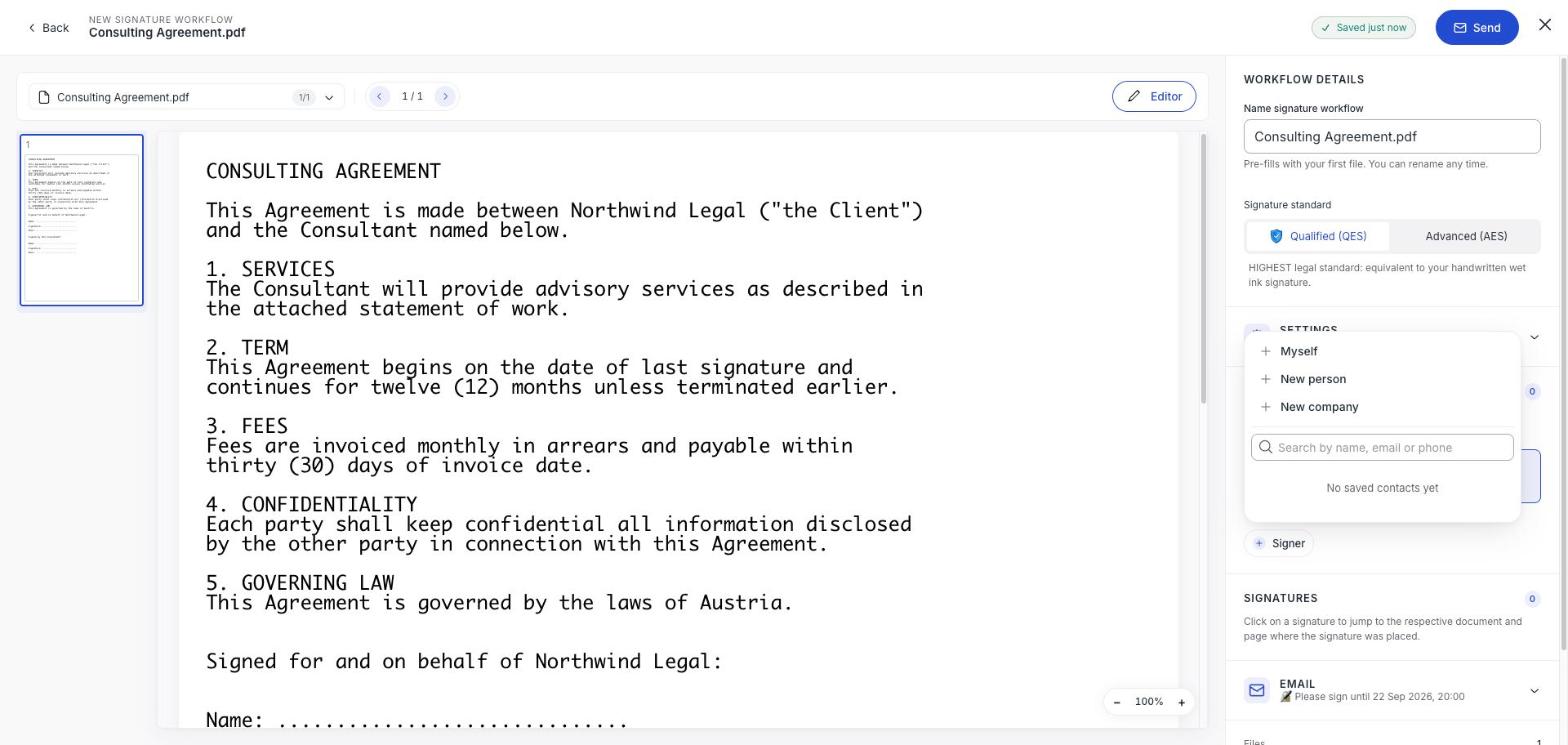
Sometimes you know which company has to sign but not which person. New company in the add-signer menu handles exactly that: you address the document to the business, and they decide internally who signs it.
How it works
- 1Click + Signer → New company.
- 2Enter the company name and a contact email. That contact is your way in: the person who will decide who signs.
- 3Place signature fields for the company as you would for a person.
- 4Send. The contact receives a link that lets them nominate the signers rather than sign themselves.
The contact nominates the signers
They open their link and name the people who will sign on the company’s behalf: up to three. Each nominated person then receives their own signing link and signs individually.
The contact need not be a signer
They can nominate themselves, or name colleagues and take no further part. That is the point: you are asking an organisation to sign, not a person you happened to have an address for.
Once the list is submitted it is fixed. For the recipient-side view, see Signing on behalf of a company.
When to use it
- You are contracting with a business and do not know who holds signing authority.
- The company needs more than one person to sign and you would rather they worked out who.
- Staff turnover means the right person changes between deals.
If you already know exactly who signs, use New person: it is one step shorter for everyone.
You cannot change it after sending
A sent workflow is fixed. If you addressed the wrong company or used the wrong contact address, cancel and rebuild. See Cancel a signature workflow.