
Adding somebody to a workflow does not give them anywhere to sign. Each signer needs at least one field on the document.
Dragging one on
- 1Scroll the document to the place you want the signature.
- 2Drag the handle at the left of the signer’s card straight onto the page. The panel says as much: drag & drop a signer directly onto the document.
- 3Drop it where it belongs. The block appears as a dashed outline in that signer’s colour.
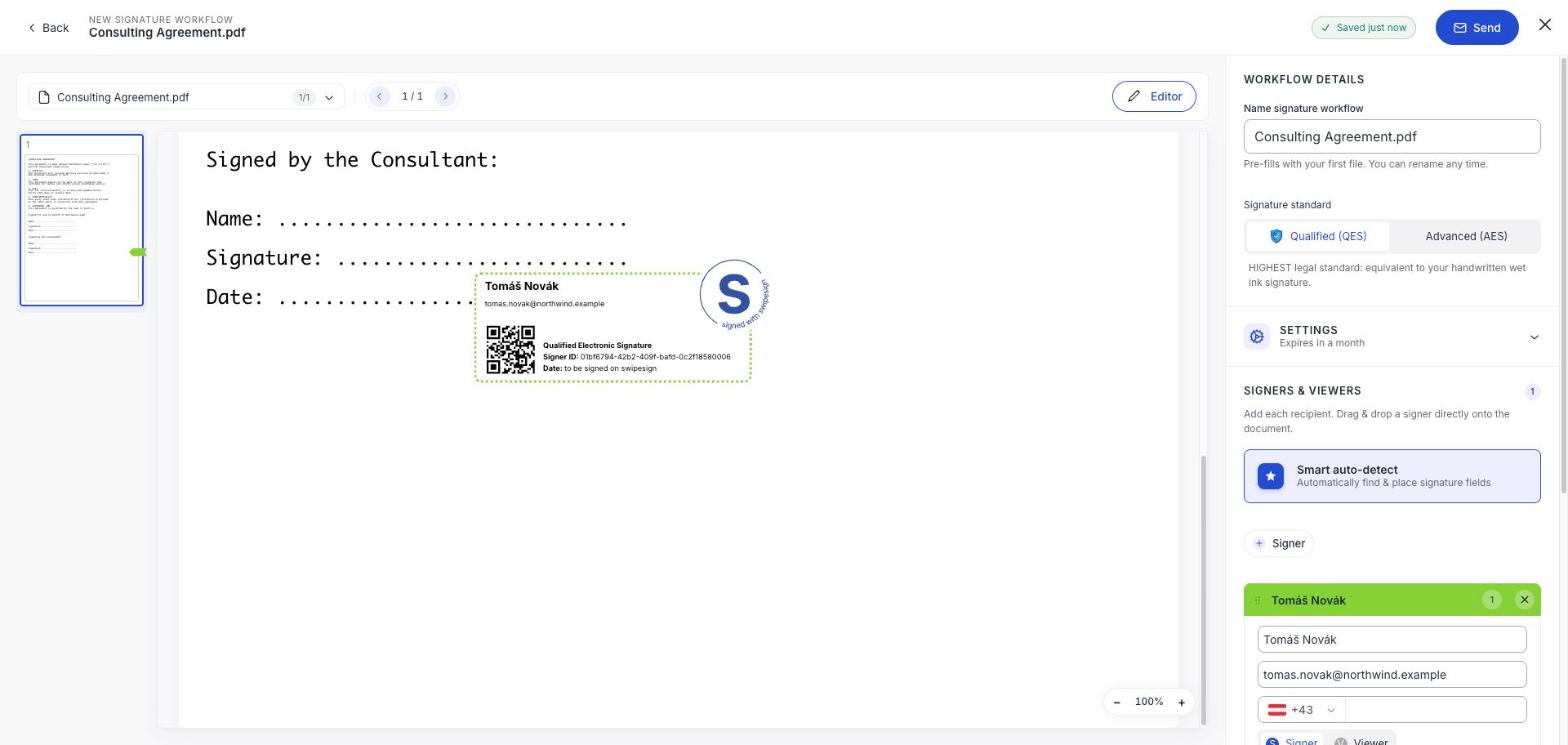
The count on the signer’s card goes up as you place fields, and each one is listed under Signatures in the panel. Click an entry there to jump to it on the page.
Or let swipesign try first
Smart auto-detect looks for likely signature spots and places fields for you. It works from the text in the document, so it does well with a clear "Signature:" label and nothing at all with a scan. See Detect fields automatically.
What the block will contain
What you place is a preview of the finished signature, so you can see exactly how much room it takes. It carries the signer’s name, a QR code, the signature standard, a signer ID and the date: plus the swipesign seal.
An AES block shows contact details
On an Advanced signature the block prints the signer's email address and phone number in full. On a Qualified one the email is masked. If several signers who don't know each other will each receive a copy, that is worth knowing before you send.
Before you send
- Check Fields placed in the summary at the bottom of the panel. If it is lower than your signer count, somebody has nowhere to sign.
- Make sure each field is assigned to the right person: the colour and name on the block tell you.
- Leave room. A block dropped over existing text will sit on top of it in the signed file.
The signed file gains a page
However you lay the document out, swipesign appends a Signature Certificate Page at the end and stamps a workflow ID on every page.