
Smart auto-detect sits at the top of the Signers & viewers panel. It reads the document, looks for places that seem to want a signature, and places fields there so you do not have to.
Using it
- 1Add your signers first. Auto-detect needs to know who the fields belong to.
- 2Click Smart auto-detect.
- 3Check what it placed. Anything it got wrong you can drag, resize or delete like a field you placed yourself.
When it finds nothing
You get No further signature fields detected, and nothing is placed.
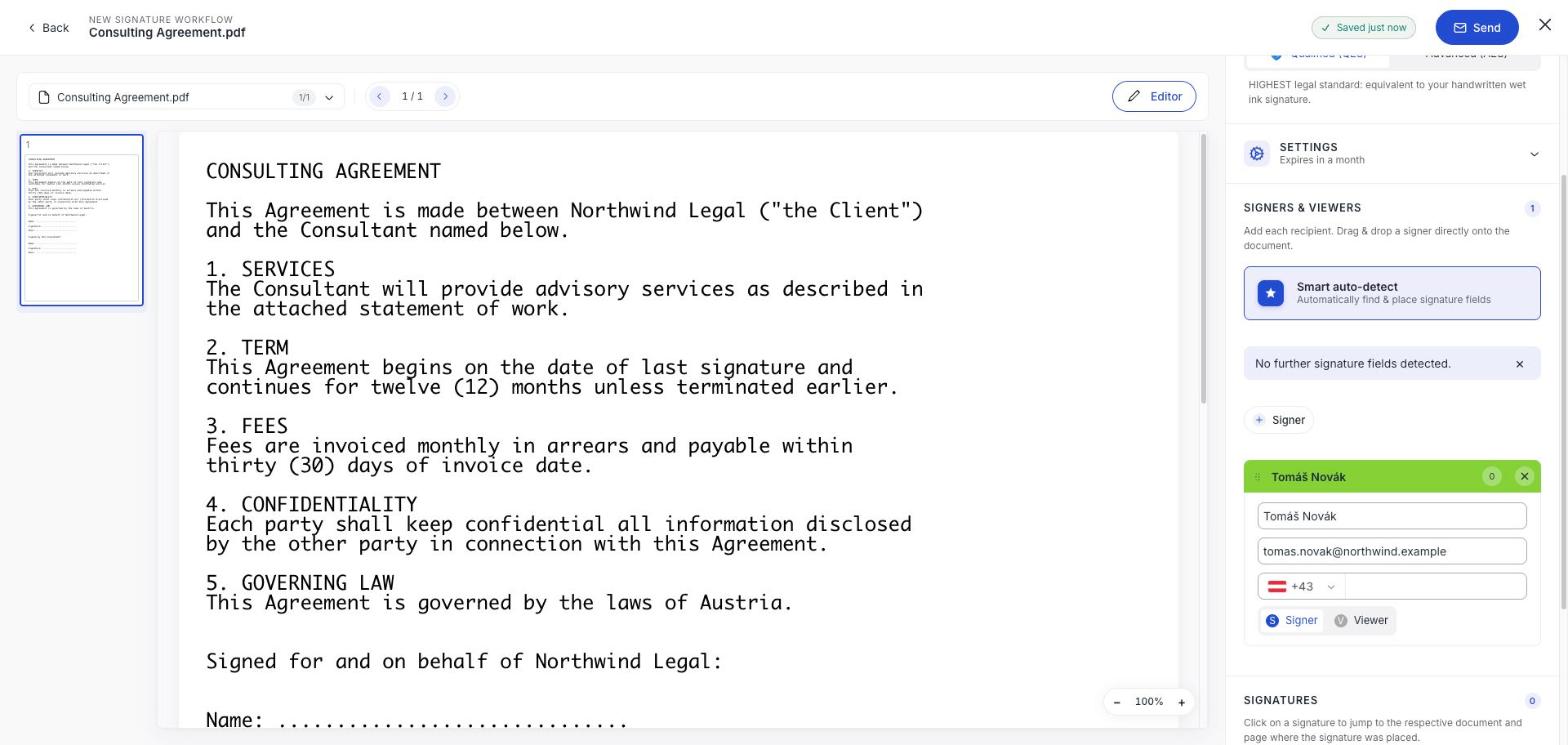
This is common and not a fault. Detection works from the text in the document, so it does well with a clear Signature: label and poorly with a scanned page, a photographed contract, or a layout that only implies where to sign.
It also means "no further fields": if you have already placed some, it will not duplicate them.
Do it by hand instead
Drag a field from a signer card straight onto the page wherever you want it. For a one-page agreement with two signatures that is quicker than checking what auto-detect guessed. See Place signature fields.