
A signature workflow is one document, or a few, plus the people who need to sign it. Everything happens on one screen, so there are no steps to work through and nothing to submit until you press Send.
Four ways in
- + New at the top of the sidebar. The quickest.
- New from PDF on the dashboard.
- Documents → New.
- Drop a file straight onto the dashboard.
Add your document
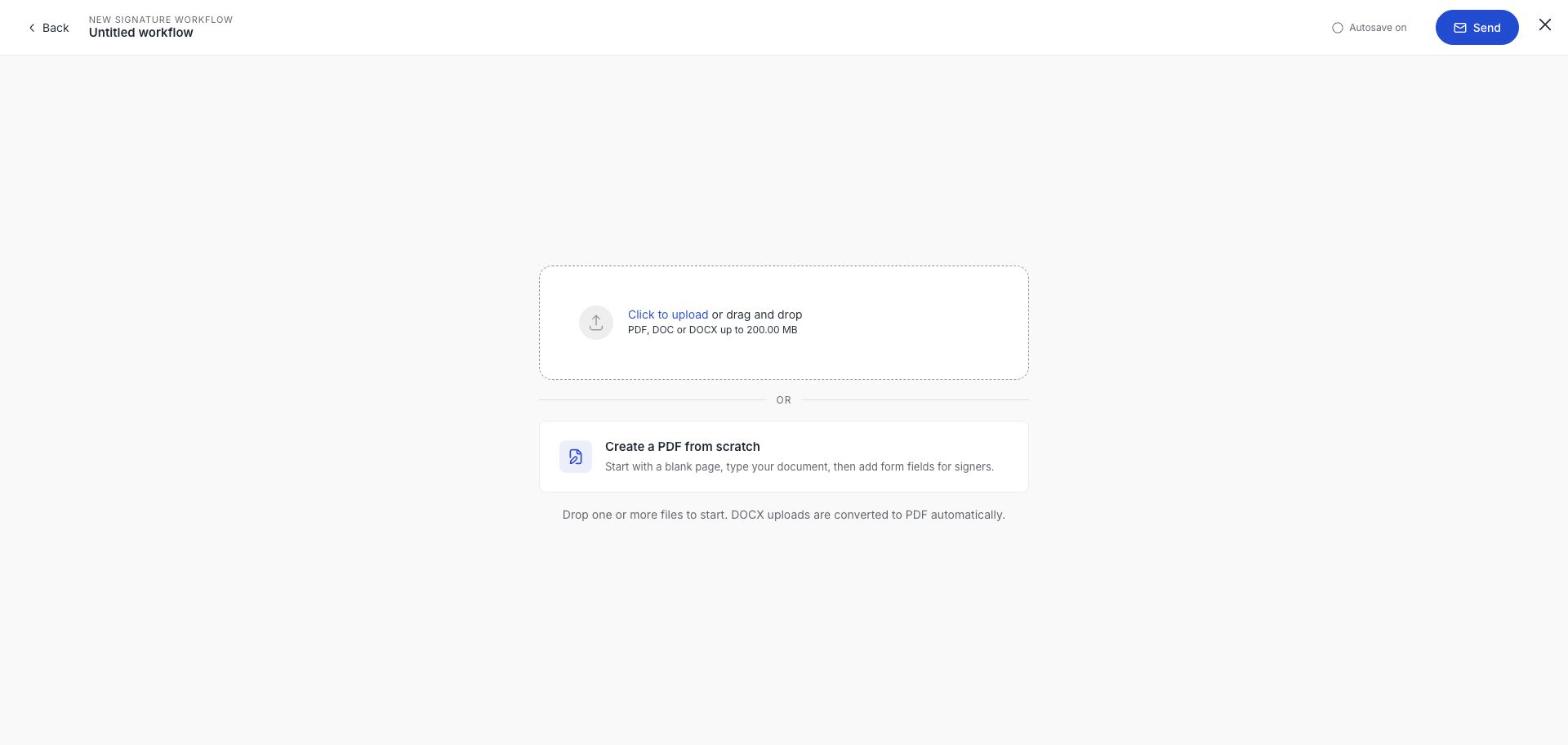
Upload a PDF, DOC or DOCX, or drag one in. You can add more than one file to the same workflow. If you haven't got a document yet, Create a PDF from scratch gives you a blank page to type into. See Supported files and sizes.
The builder
Once a file is in, the document fills the screen and everything you can change sits in the panel on the right.
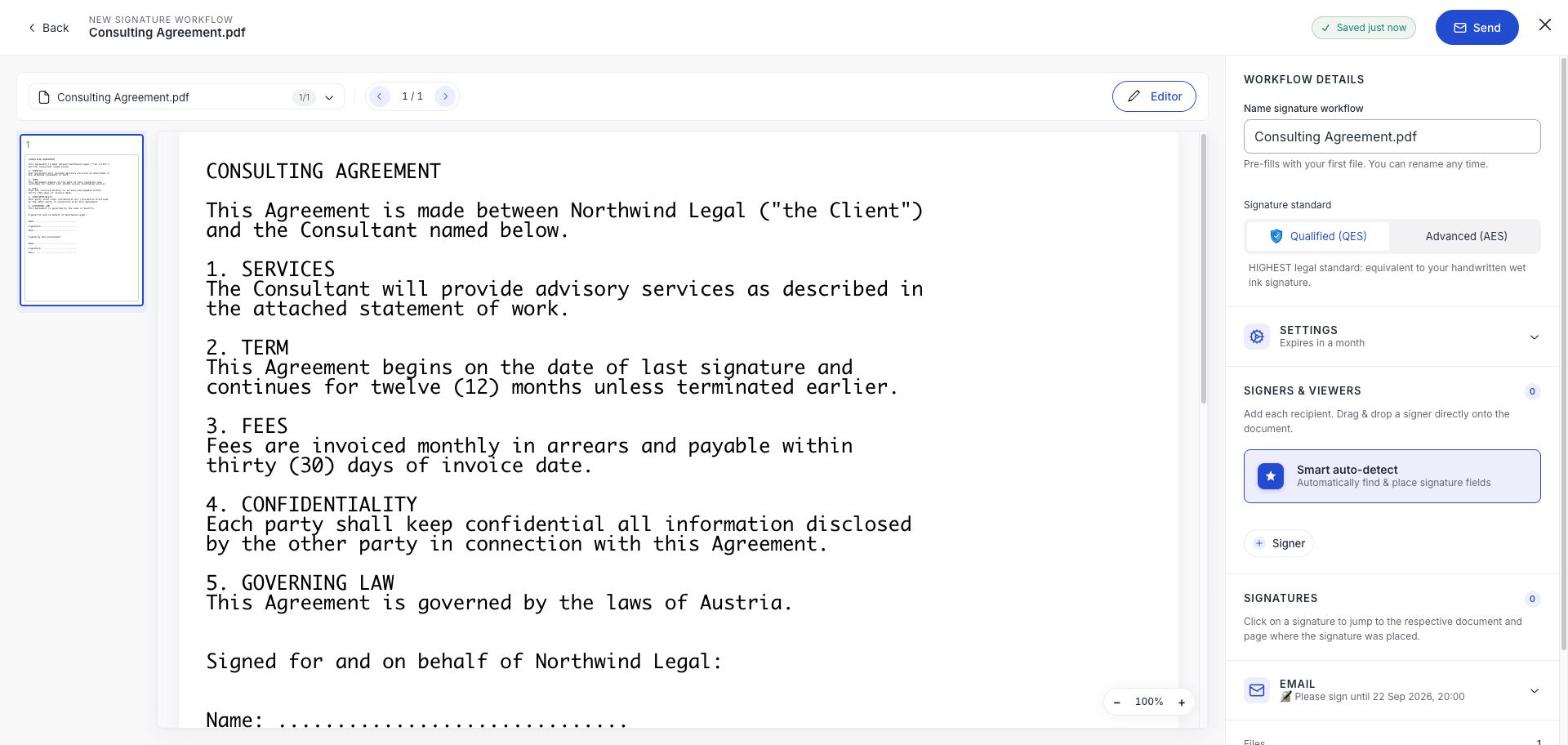
| Panel | What it does |
|---|---|
| Name signature workflow | Pre-filled from your first file. Rename it any time: this is what you and your signers see. |
| Signature standard | Qualified (QES) or Advanced (AES). See Choose AES or QES. |
| Settings | Expiry, team sharing, signing order, PIN protected document access, reviewers. See Expiry, PIN access, signing order and reviewers. |
| Signers & viewers | Who receives it. See Add signers, viewers and yourself. |
| Signatures | Every field you have placed. Click one to jump to it on the page. |
| The message your recipients get. |
Nothing is sent until you press Send
The workflow saves as you go, the top of the screen shows Saved just now, and sits in Drafts until you send it. Close the tab and come back tomorrow; it will be where you left it.
Before you send
The bottom of the right-hand panel counts up what you have built: files, signers, fields placed, and when it expires. If Fields placed is 0, your signers have nowhere to sign: go back and place at least one.