
The upload box tells you the rules: PDF, DOC or DOCX, up to 200 MB.
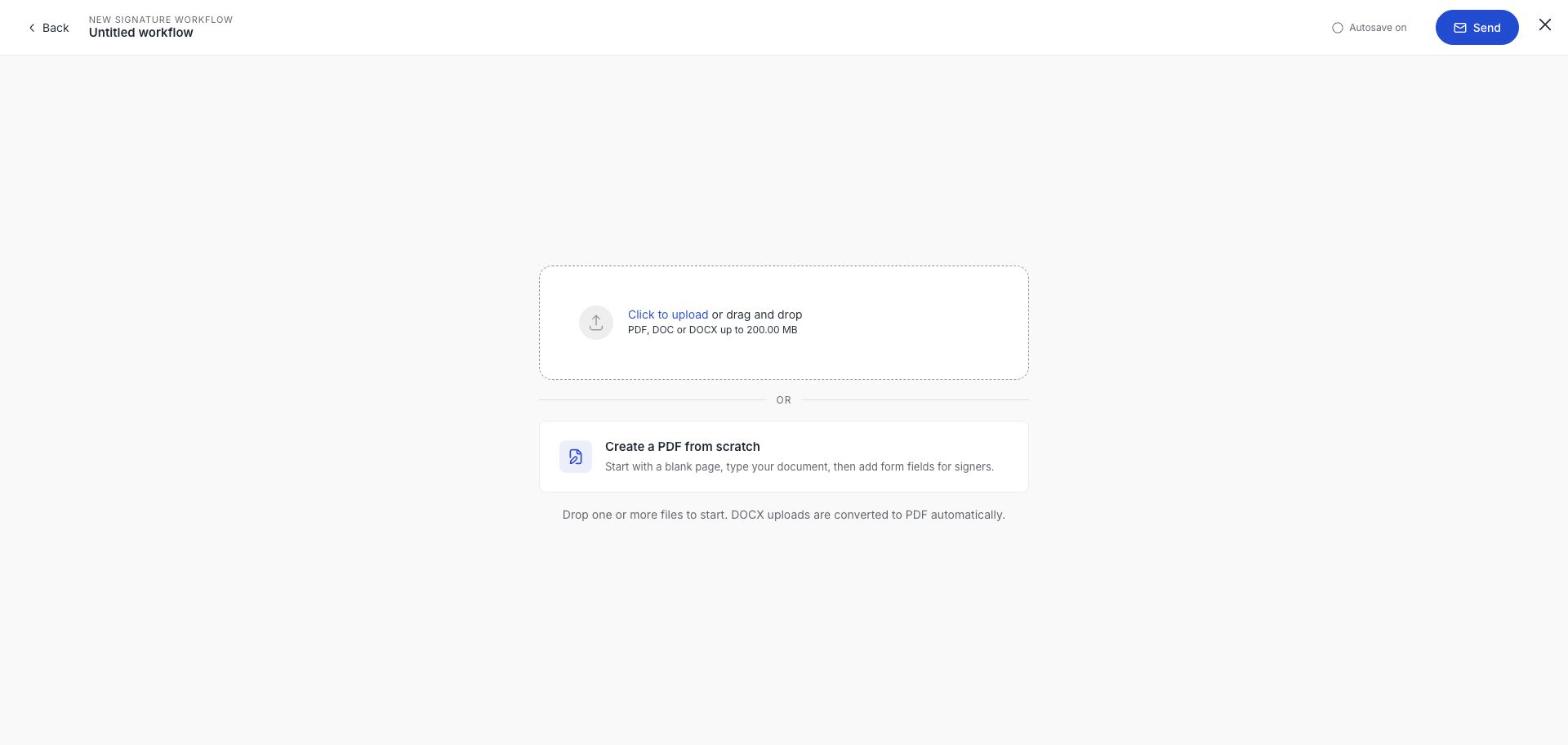
Word files are converted
Upload a DOC or DOCX and swipesign converts it to PDF for you. You don't need to export it first.
Check the converted file before you send
Conversion is good, not perfect. Unusual fonts, tight tables and complex headers can shift. The document preview in the builder is the converted version: read it there rather than trusting the original. If the layout matters, export to PDF yourself and upload that instead.
More than one file
A workflow can hold several files, and your signers work through them in one session. The workflow name pre-fills from the first file you add.
If you would rather send one combined document, merge them first: see Merge PDFs.
When a file won't upload
| Problem | Fix |
|---|---|
| Wrong format | Only PDF, DOC and DOCX are accepted. Export or convert first. |
| Password-protected PDF | Remove the password and upload again. An encrypted PDF cannot be signed. |
| Over 200 MB | Usually scanned images. Re-export at a lower resolution. |
| Conversion failed | Something in the Word file could not be processed. Export it to PDF yourself and upload that. |
No document yet?
Create a PDF from scratch on the upload screen gives you a blank page to type into, then you place fields on it as normal. See Create a PDF from scratch.