
Someone used swipesign to send you a document for signature. You do not need an account, you will not be asked to pay, and nothing is installed on your computer. The whole process runs in your browser and usually takes a few minutes.
Signing is legally binding, so the law requires that we can prove who signed. That is the reason for the identity step in the middle: it is the part most people have questions about, and it is covered below.
What the process looks like
- 1Open the link in your email. The invitation comes from swipesign on behalf of the sender, and names both the sender and the document. If you are not sure the email is genuine, see Is this email really from swipesign?.
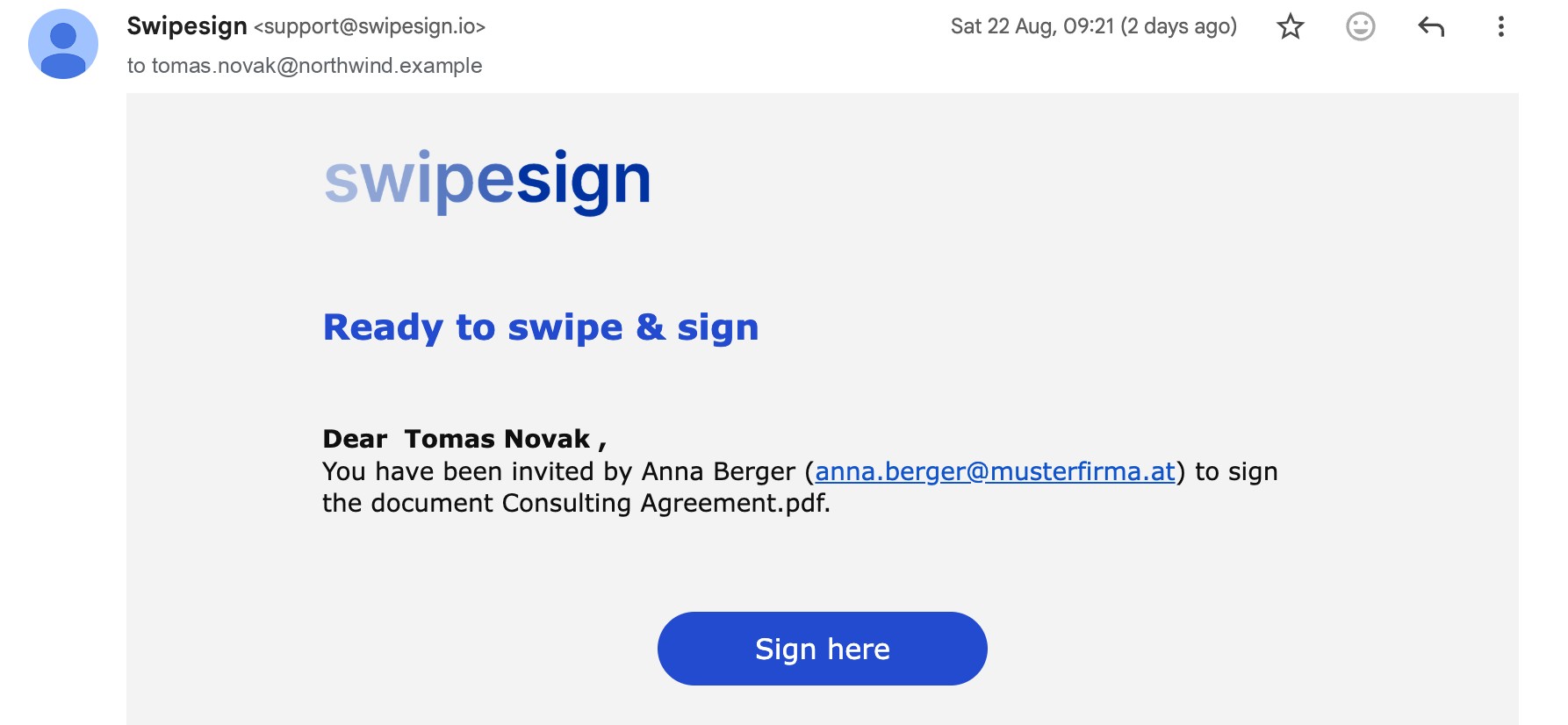
- 2Unlock the document, if the sender protected it. Some documents ask for a code sent by text, a PIN, or a password before they open. See Opening a protected document.
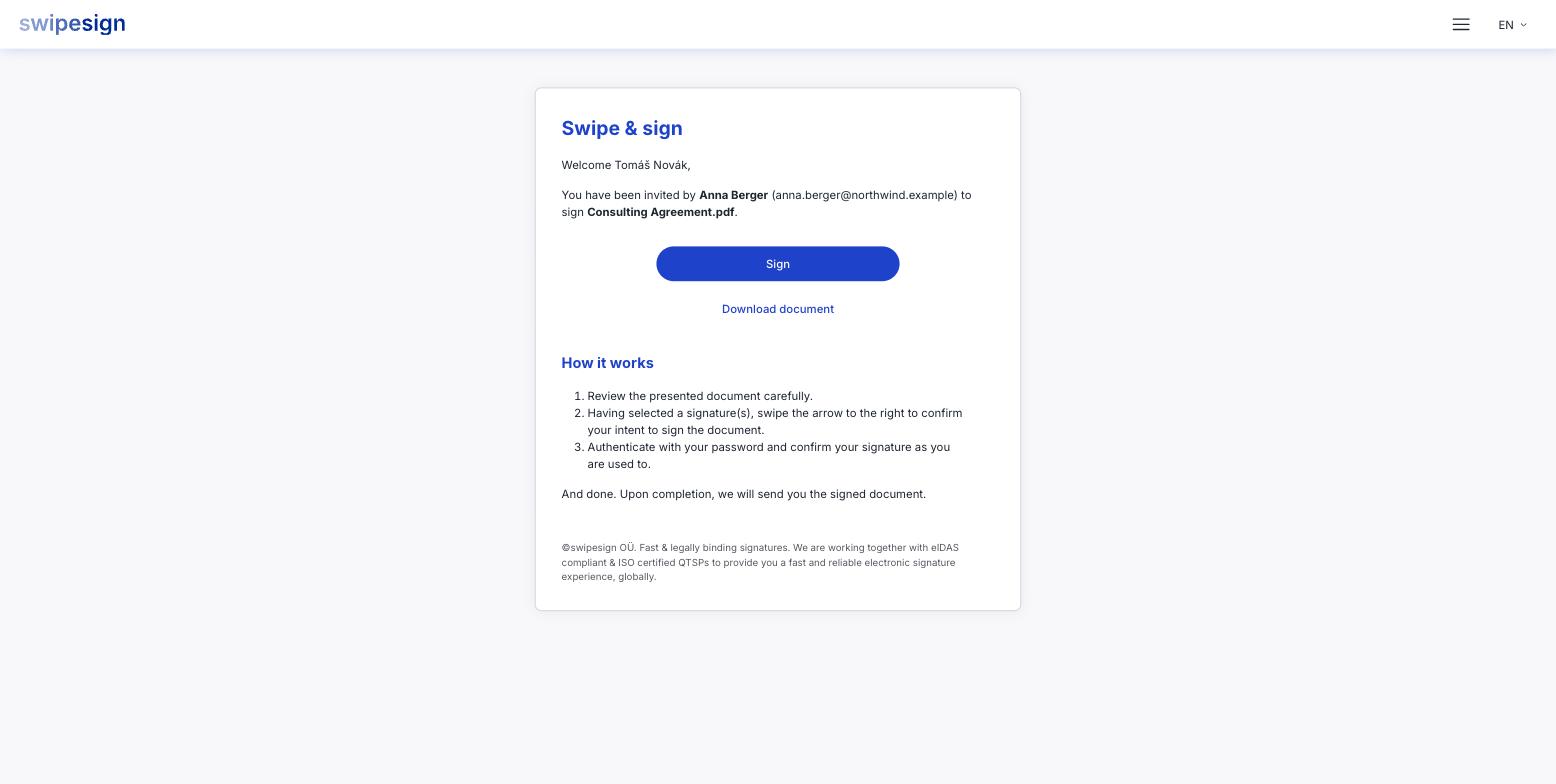
- 3Land on the welcome screen. It names the sender, names the document, and carries any message they wrote you. Nothing is signed yet.
- 4Read the document. Scroll through the whole file. The fields you need to fill in are highlighted, and you can move between them without hunting through the pages.
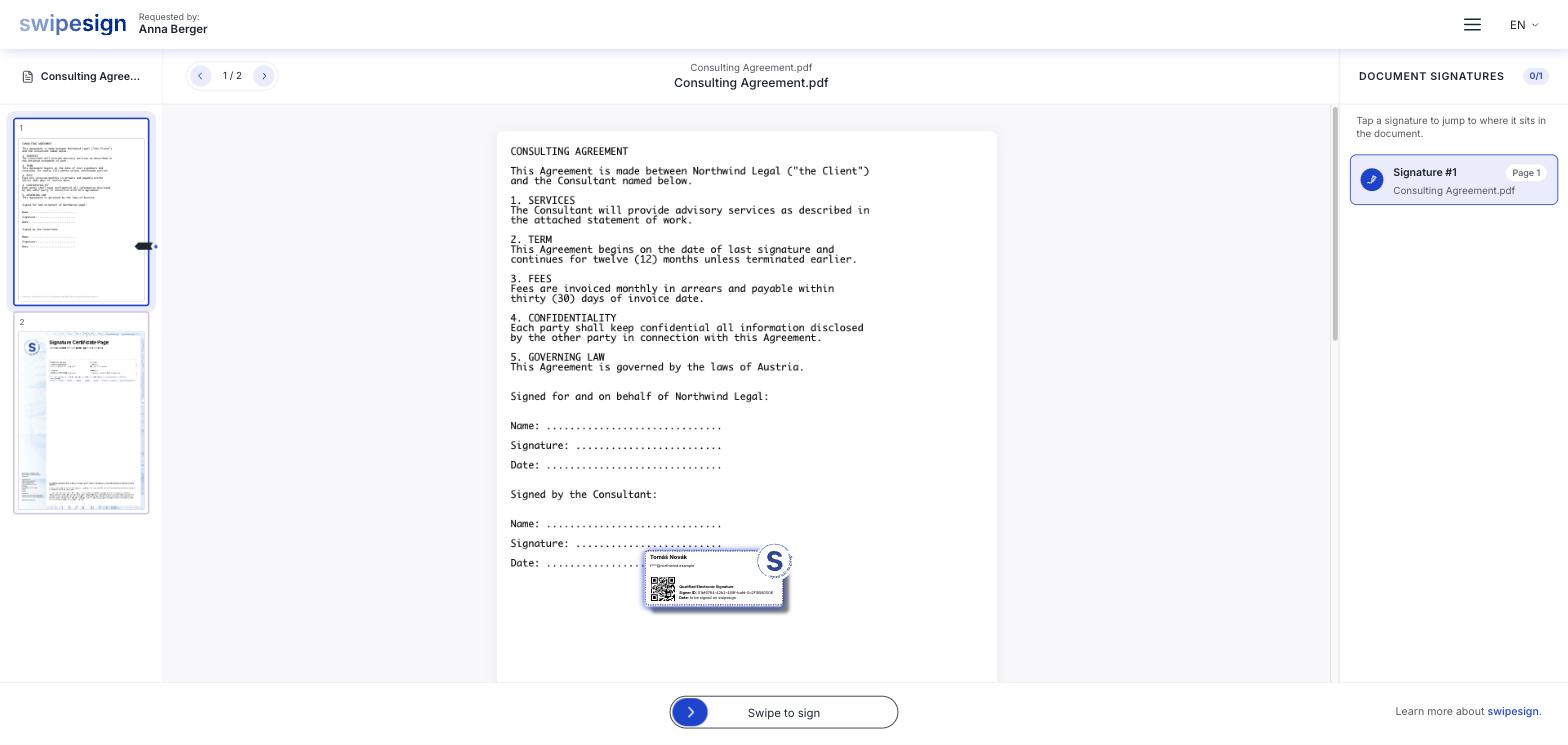
- 5Confirm you want to sign. Swipe the button at the bottom of the screen. This is the point of no return for the content: after it, you are only confirming your identity.
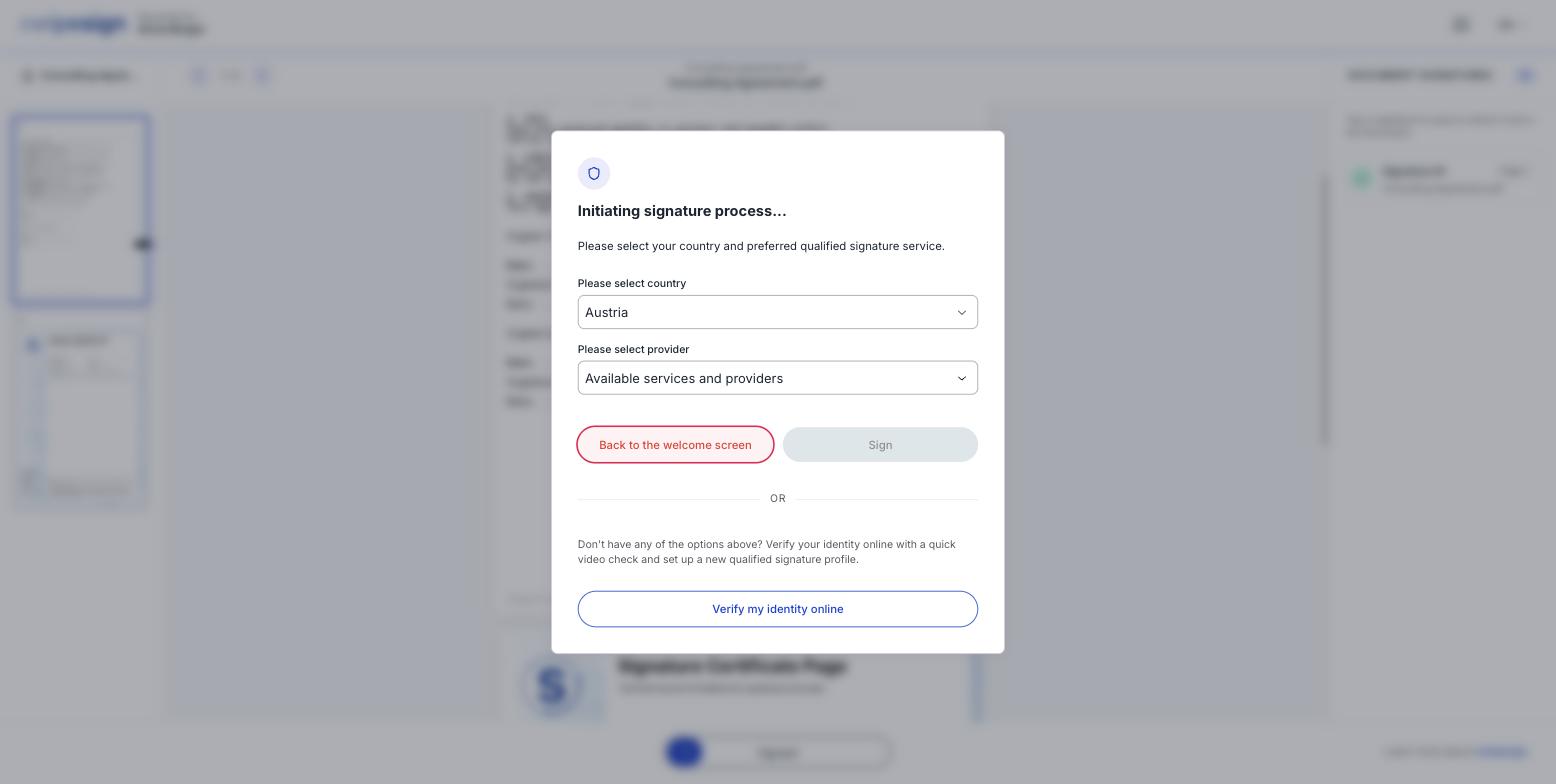
- 6Prove who you are. Choose your country and the service you already use, or verify online in a few minutes if you have none. This is explained in the next section.
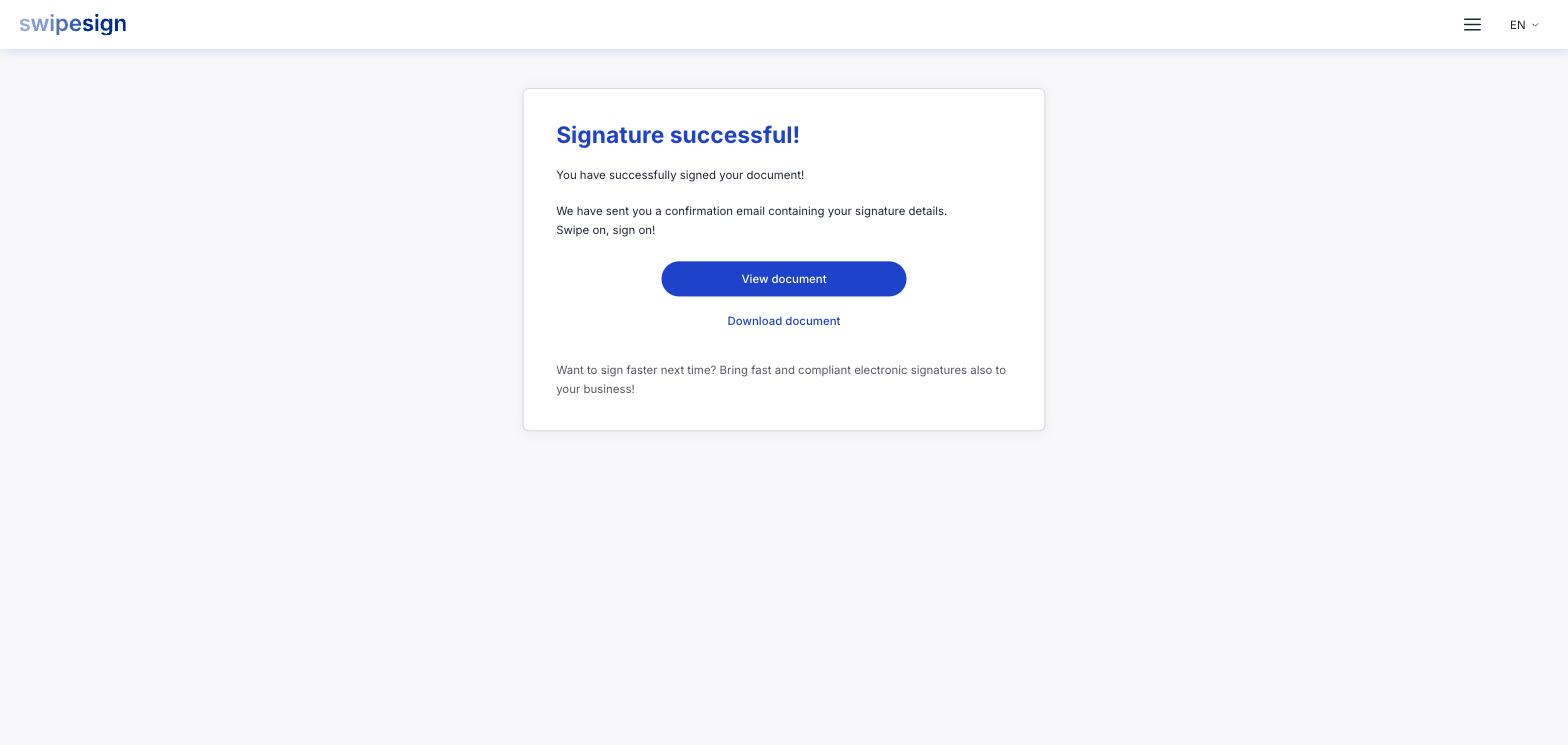
- 7Done. The signature is applied and everyone on the document is notified.
Why you have to prove your identity
swipesign only issues signatures that carry real legal weight: an Advanced Electronic Signature (AES) or a Qualified Electronic Signature (QES) under EU law. Both seal the document against later changes, and both identify you: an AES through your email address and a code sent to your phone, a QES through a proper identity check.
For a Qualified signature you will be asked for more. If you hold a national eID, ID Austria, Smart-ID, itsme, BankID, MitID and many others, you use it and the step takes under a minute. If you do not, you can verify online with a short video or photo check of your ID document. For an Advanced signature there is no such step. See Advanced or Qualified.
What it costs you
Nothing. The person who sent the document pays for it. There is no account to create, no subscription, and no card details at any point. If a page ever asks you to pay to sign a document, it is not swipesign: close it and tell the sender.
Getting your copy
Once everyone has signed, you can download the completed document together with its audit trail, a record of who opened, viewed and signed it, and when. See Getting your signed copy and the audit trail.
If you do not want to sign
You are never obliged to. There is no Decline button though, and closing the tab tells the sender nothing: reply to them instead, and they can close the workflow. See If you do not want to sign. If you were asked to review rather than sign, the flow is different: Reviewing and approving instead of signing.