
Finish the dashboard checklist first: phone, identity, plan. Then this takes about five minutes.
- 1Click + New in the sidebar and upload your document. PDF, DOC or DOCX.
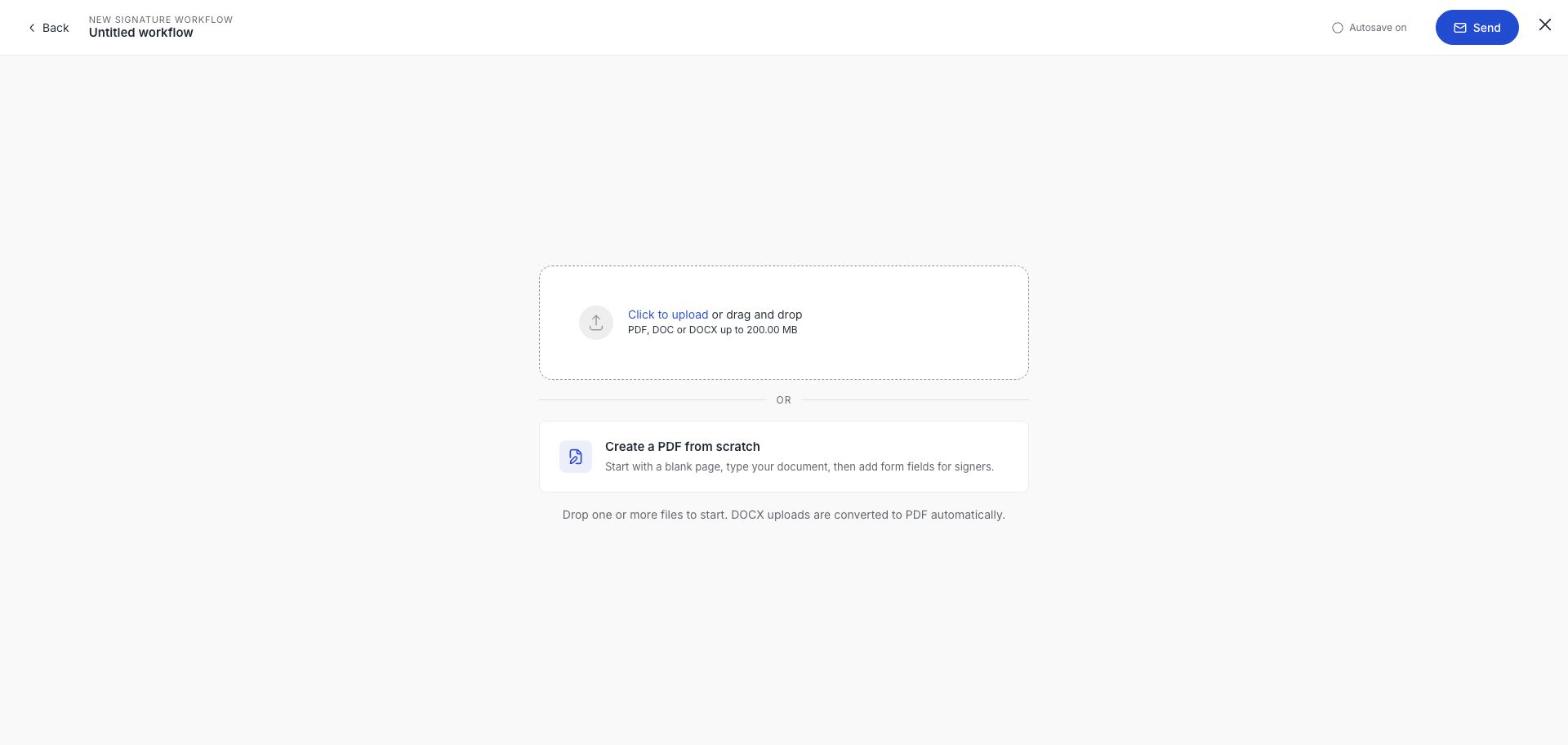
- 2Name the workflow. It pre-fills from the file name; make it something your signer will recognise in their inbox.
- 3Choose the signature standard. For a first document to someone you already deal with, Advanced (AES) is the sensible default: it asks less of them. See Choose AES or QES.
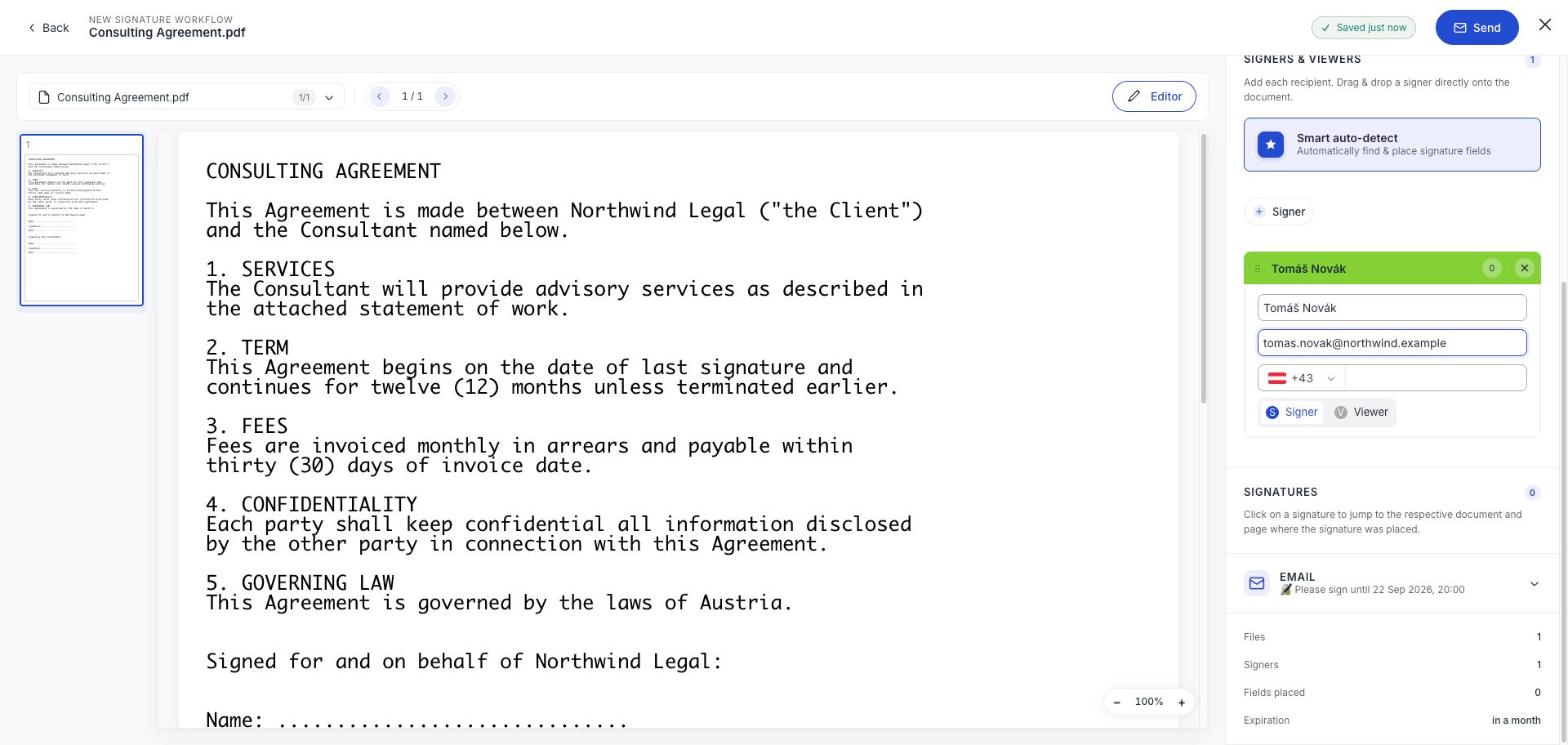
- 4Click + Signer → New person and enter their name, email and phone number. The phone matters on an AES: leave it out and you will see a Weak AES warning.
- 5Drag the signer onto the document where they should sign. A signature block appears showing exactly what will be applied.
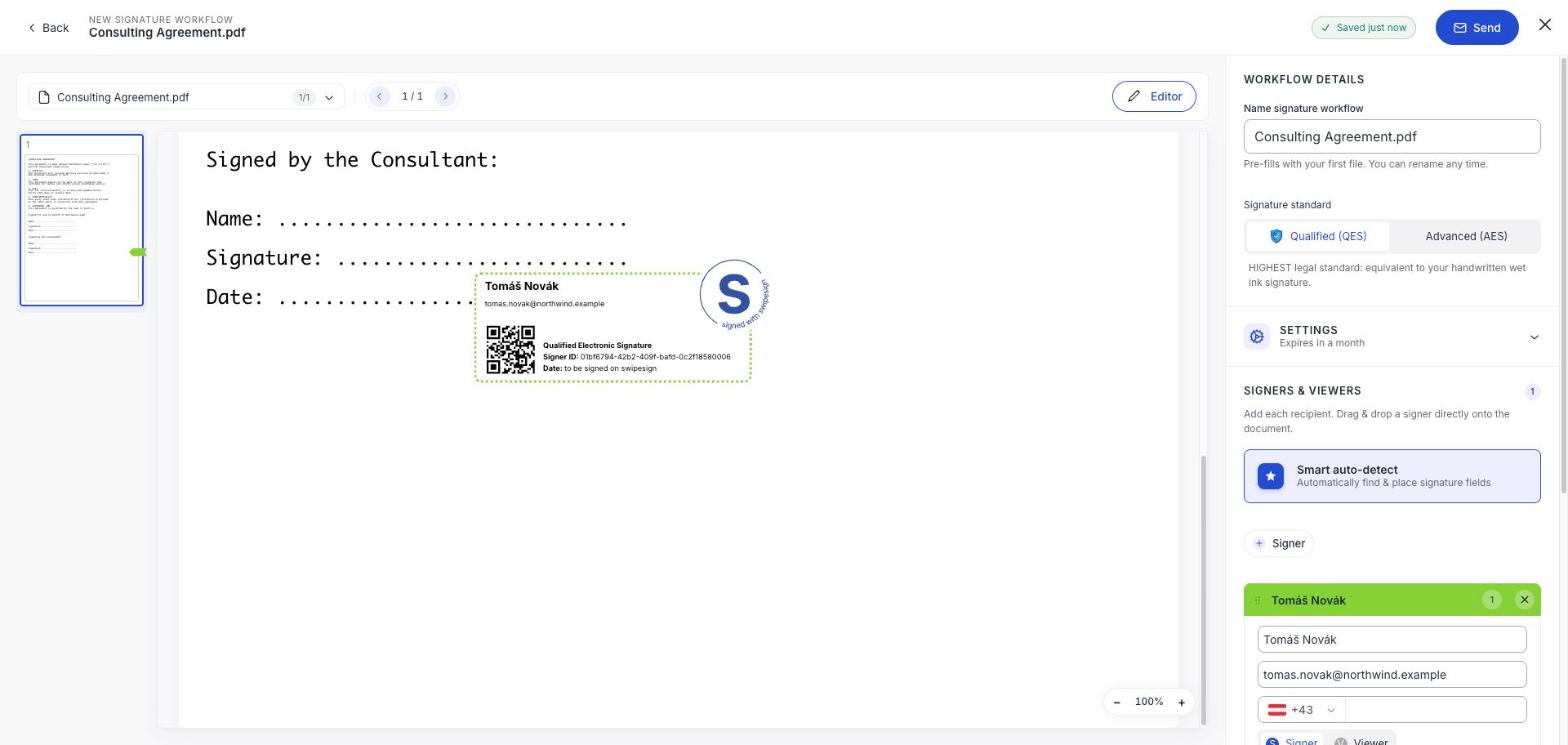
- 6Check the summary at the bottom of the panel: Files 1, Signers 1, Fields placed 1. If fields placed is 0, your signer has nowhere to sign.
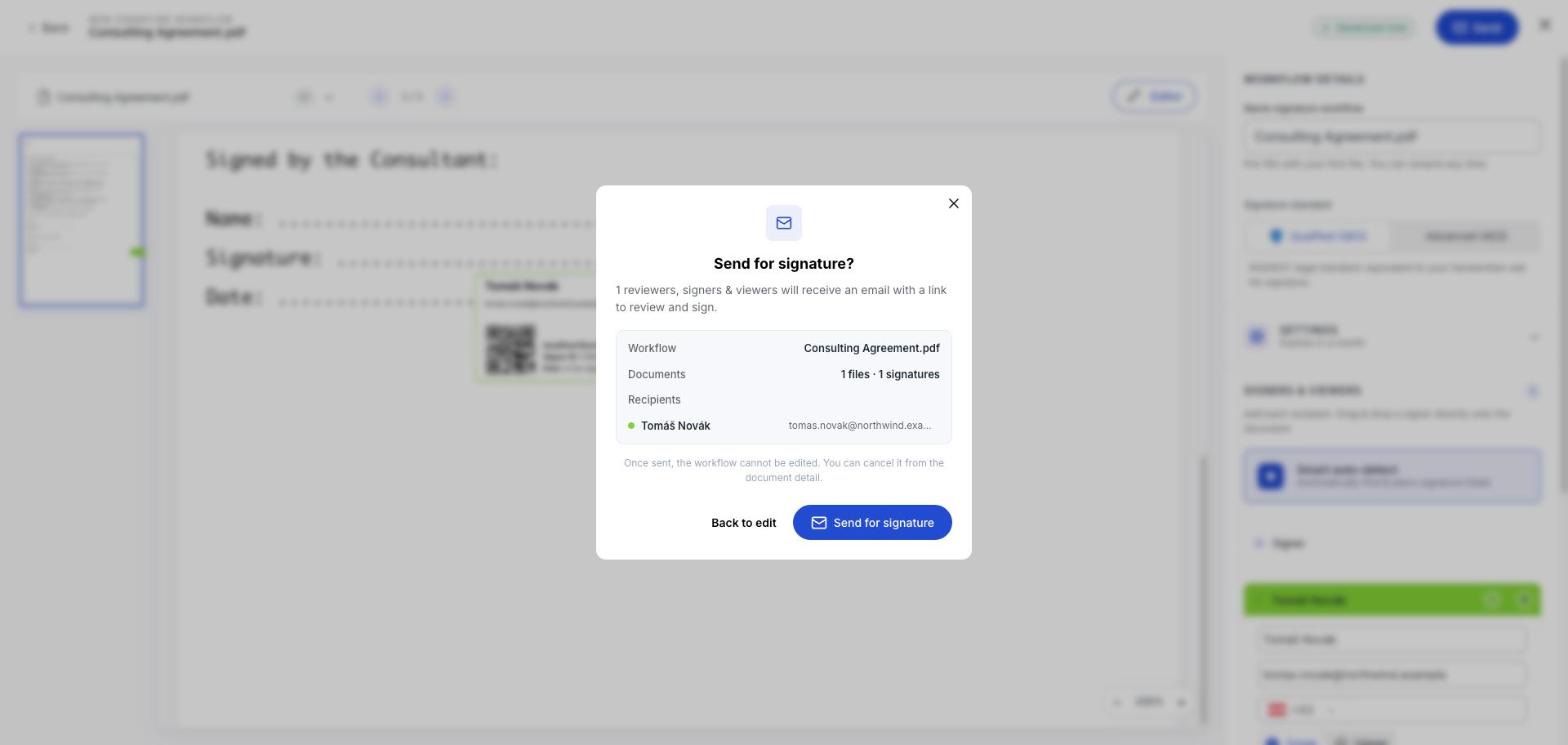
- 7Click Send, read the confirmation, especially the email address, and confirm.
What happens next
The workflow moves to Active and your signer gets an email. They open it, read the document, swipe to sign, confirm a code sent to their phone, and they are done. They need no account and pay nothing.
You can follow it on the dashboard, Recent activity shows when they open and sign it, or in the document's audit trail.
When it comes back
The workflow moves to Done. Open Documents → Done and take two things: the signed document and its audit trail.
Download it now, not later
Completed documents are deleted after 14 days. This is the one habit worth forming on your first document rather than your fiftieth. See Download signed documents and the audit trail.
Sending the same thing again?
If this document is one you will send repeatedly, build it once as a template instead. See What templates are for.