
Anyone you invite can send their own documents under your company account, billed to your subscription. On swipesign Business and Enterprise there is no limit on how many people you add and no per-user fee. The Free plan has two users.
Send an invitation
- 1Click your name at the bottom of the sidebar, then Team. It lists everyone in your workspace.
- 2Click Invite member.
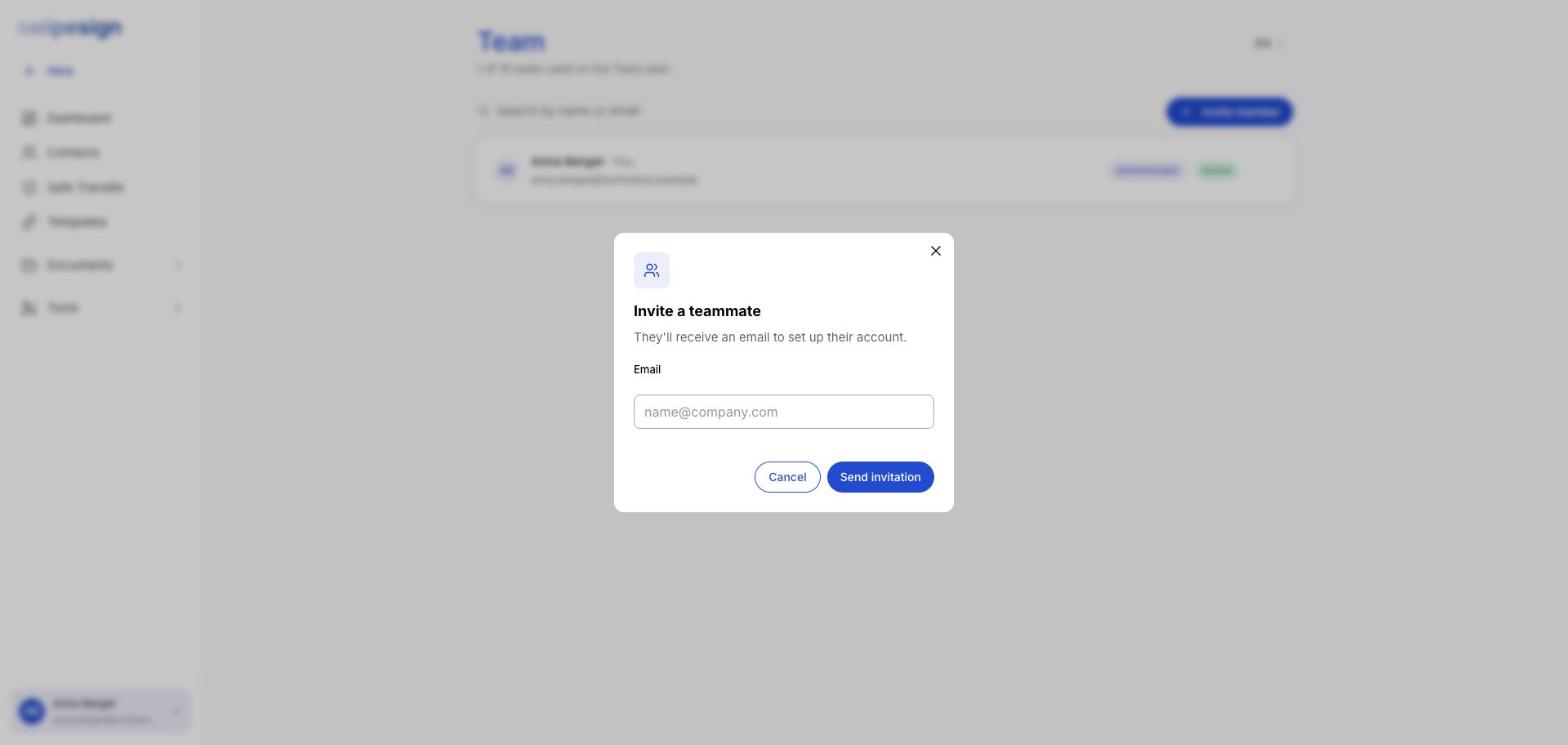
- 3Enter their email address and click Send invitation. That's all you need: they fill in their own name and password when they accept.
- 4They appear in the list straight away, marked Invited.
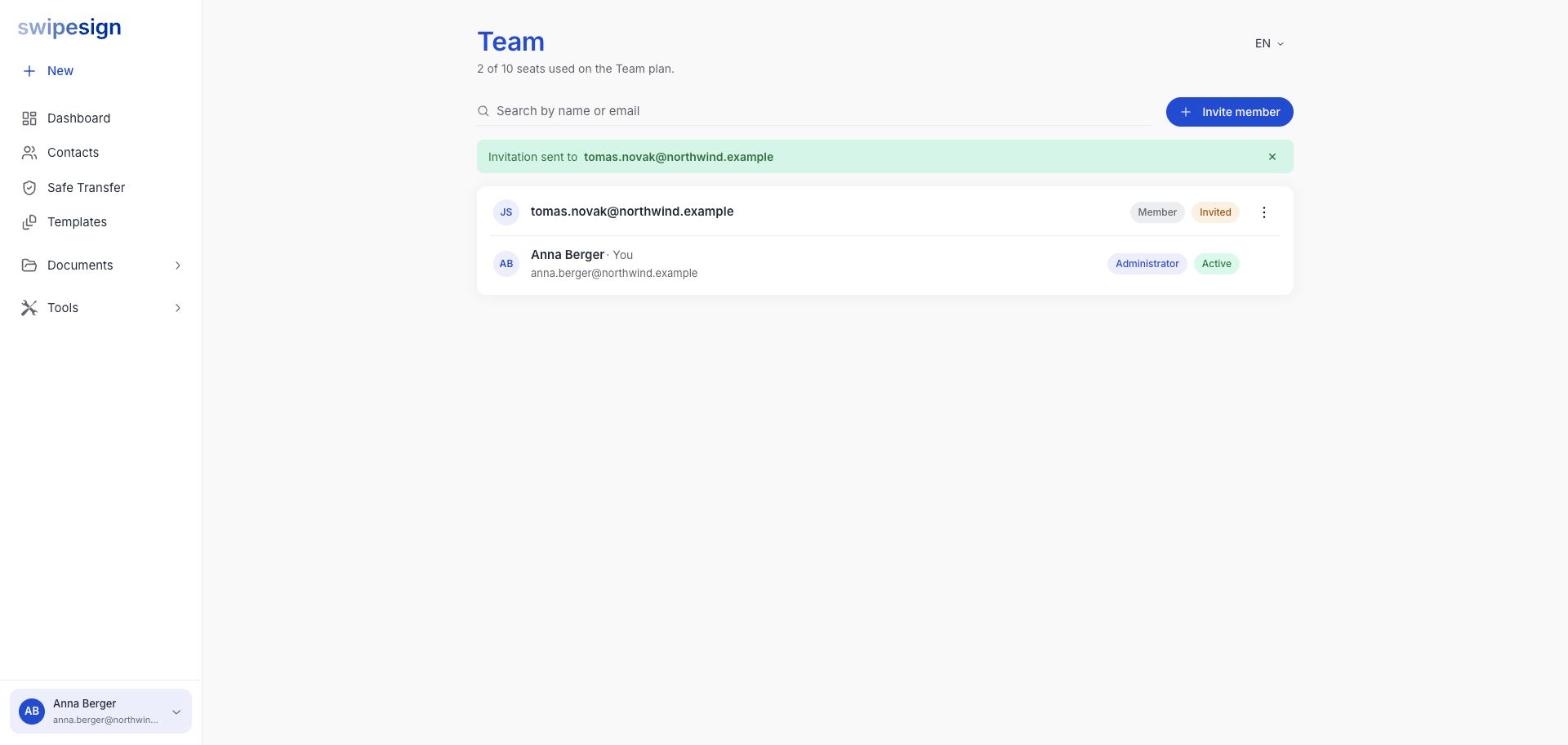
Invited, then Active
A new person is Invited until they accept, then Active. They also get the Member role by default: see Roles.
On the Free plan, an invitation counts immediately
A pending invitation is one of your two users from the moment you send it, not when they accept. If you're at the limit, clear out invitations that were never taken up. See How many people can send.
If the invitation doesn't arrive
Open the menu on their row.
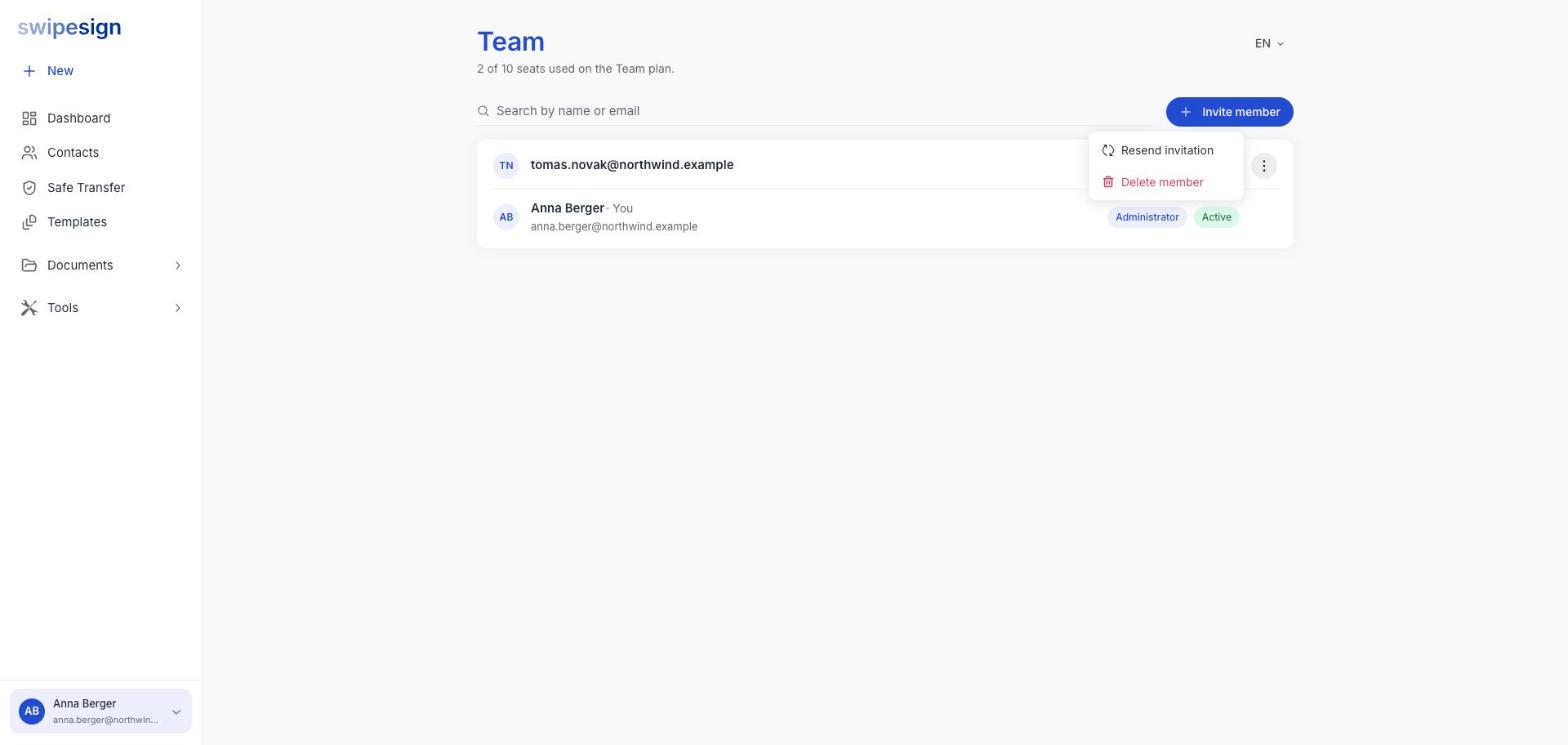
- Resend invitation: sends it again to the same address.
- Delete member: use this if you typed the address wrong, then invite the correct one.
Before resending, check the address in the list for a typo, and ask them to look in spam: the email comes from swipesign, not from you.
They verify their own identity
Joining your team doesn't inherit your verification. Each person completes their own identity check before they can send documents for signature, because it's tied to them personally rather than to the company. It costs you nothing: we cover it for every account. See What identity verification is and why it's required.