
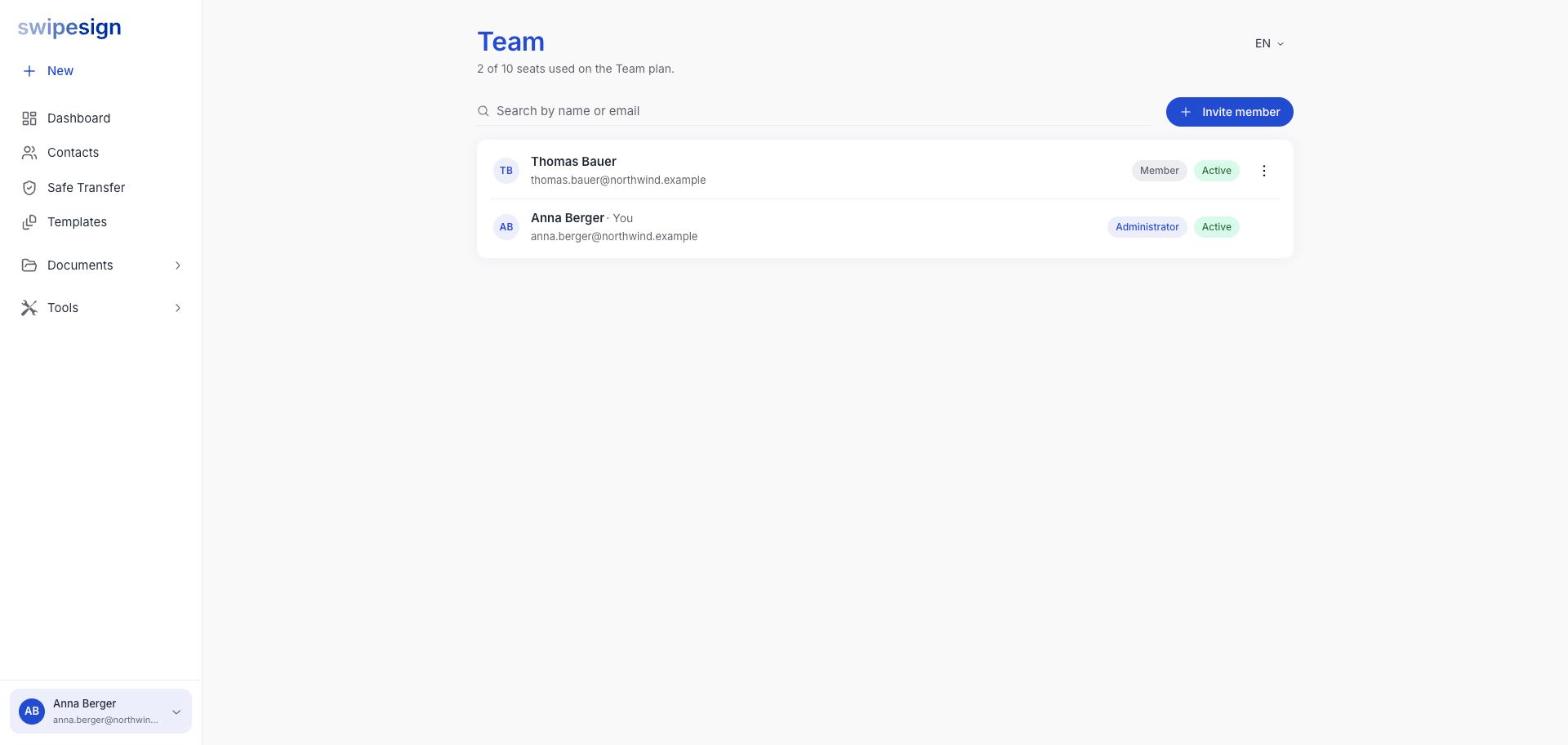
Every row on the Team page carries two badges. The first is the role, the second is where they are in the joining process.
Roles
| Role | Who gets it |
|---|---|
| Administrator | The person who set up the account. Manages the team, the subscription and billing, and the company-wide settings such as the default language. |
| Member | Everyone invited. Creates and sends their own documents, and manages their own profile and notification preferences. |
Invited people become Members automatically: there is no role to choose when you send the invitation.
What a Member cannot do
Company-level settings are administrator-only. The clearest example is the Language card under Settings, which sets the default language for outgoing emails across the whole team, a Member will not see it at all. See Language settings.
Statuses
| Status | Meaning |
|---|---|
| Invited | The invitation has been sent but not accepted. The row shows their email rather than a name: they have not entered one yet. |
| Active | They have accepted, set a password and can sign in. Their name replaces the email address on the row. |
The status also changes what the row menu offers you. An invitation can be resent or deleted; an active person can be suspended. See Suspend or remove a team member.
Everyone verifies their own identity
A role says what someone can do inside your workspace. It says nothing about whether they can sign: that needs their own identity check, which is tied to them personally rather than to your company. A brand-new Member cannot send documents for signature until they have completed it. See What identity verification is and why it's required.