
Open Safe Transfer in the sidebar and click New transfer. It builds on one screen, with a running summary on the right.
- 1Add your files. PDFs, Word, Excel, PowerPoint, JPG or PNG, up to 100 MB each. You can add several.
- 2Add recipients. Each one needs a full name and an email. The name matters: it is what the identity check is matched against, so use the name on their ID rather than a nickname.
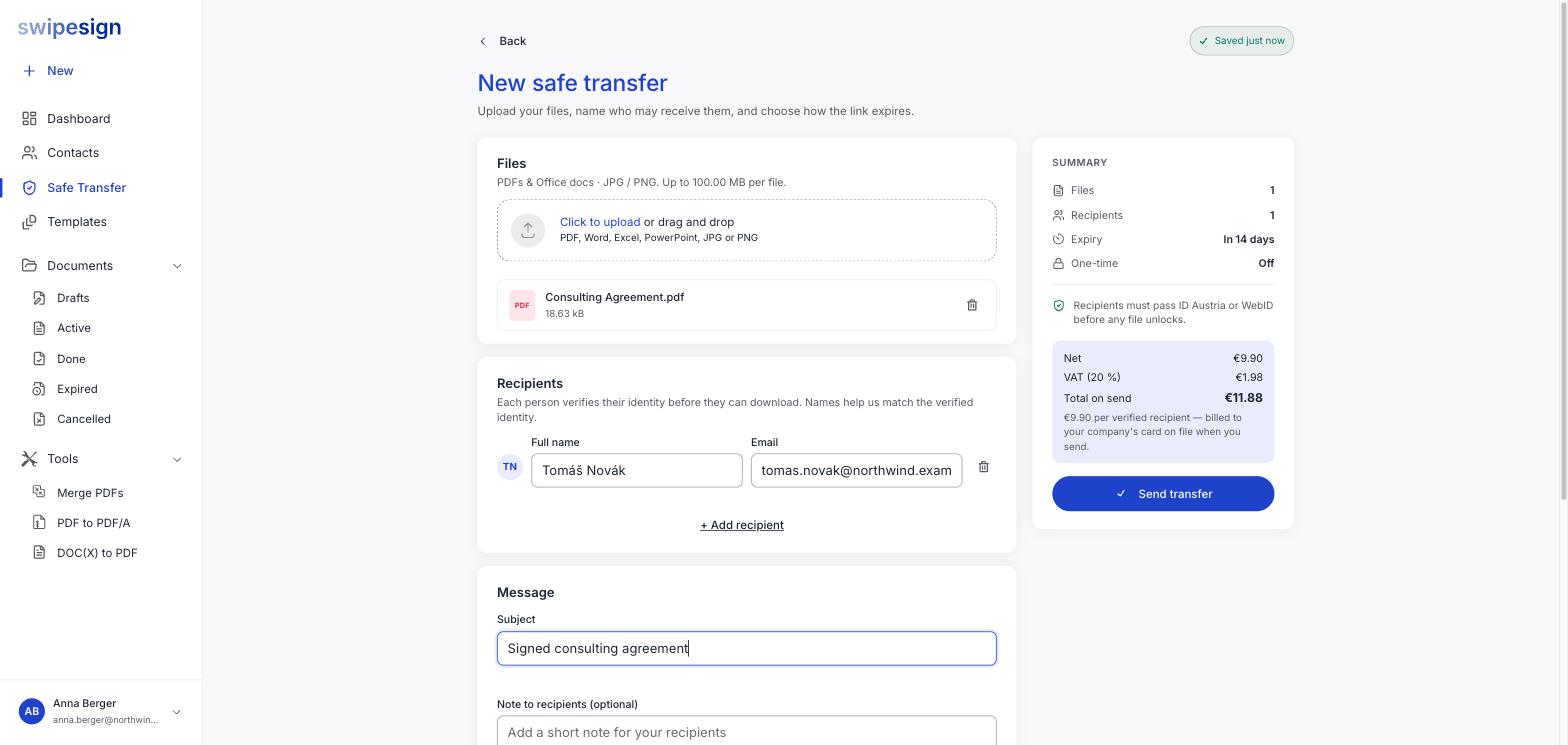
- 3Write a subject. It becomes the subject line of the email they get, so make it recognisable, a stranger receiving an identity-gated link is going to be suspicious of anything vague. A note is optional.
- 4Set the access rules. Expiry and one-time access. See Expiry and one-time access.
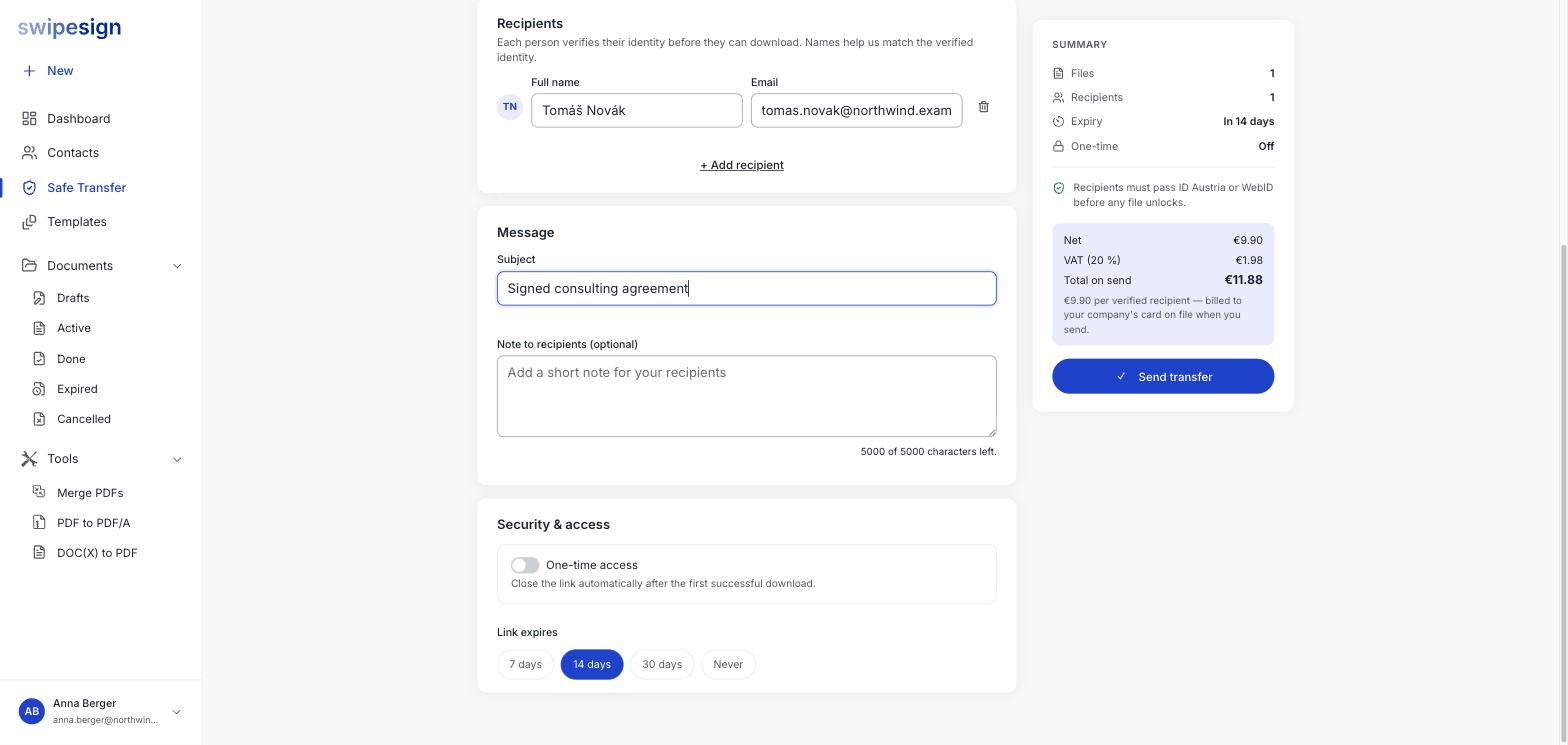
- 5Send. The summary panel shows the total before you commit, and the charge goes to your company card at that moment.
It saves as you go
The transfer autosaves from the moment you add a file, so you can leave and come back. Nothing is sent and nothing is charged until you press Send transfer.
What happens next
Each recipient gets an email with a link. Opening it does not give them the files: they verify their identity first, then download.
Back in swipesign the transfer appears as Active, with a counter showing how many recipients have verified so far. See Track recipients.
Check the address before you send
A transfer counts against your allowance the moment you send it, and the identity gate is matched to the name you entered. A typo means a wasted transfer and a recipient who cannot get in.