
swipesign runs an MCP server. MCP, the Model Context Protocol, is how AI assistants like Claude plug into other software. Connect one and you can ask it in plain words to prepare a signing, chase a signer or check what's waiting for you.
Where to find it
Your name at the bottom of the sidebar → Settings, then the AI agents (MCP) card. Everyone on the team sees it, not just administrators.
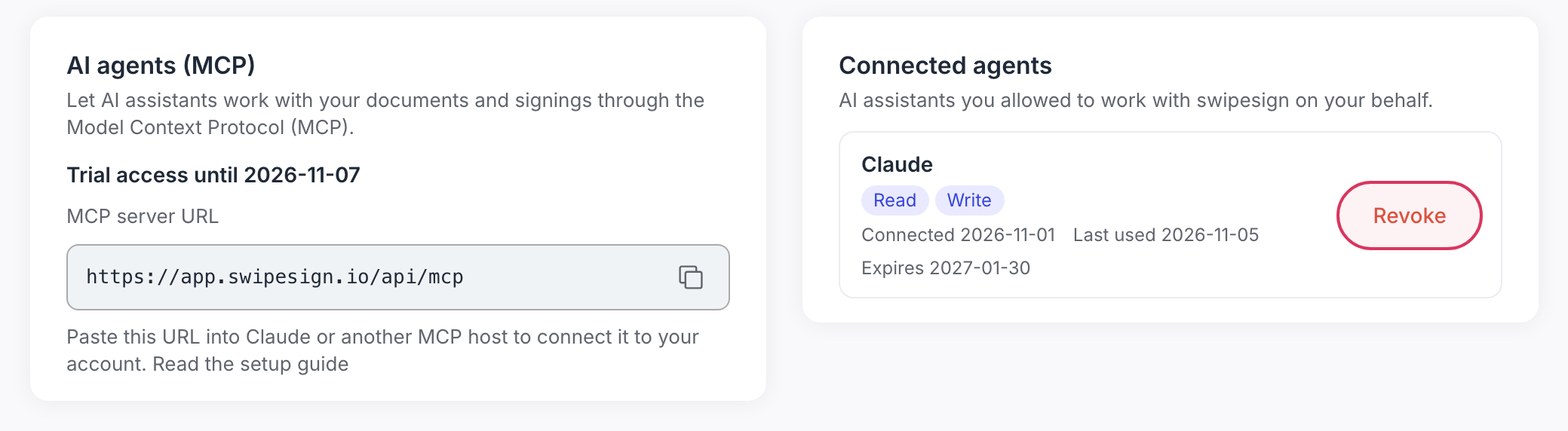
The card holds the one thing you need: the MCP server URL, https://app.swipesign.io/api/mcp. The button next to it copies it. The line above it tells you whether your organisation has access right now: there's a table for that further down.
Claude.ai or Claude Desktop
- 1In Claude, open Settings → Connectors → Add custom connector.
- 2Name it swipesign and paste the MCP server URL.
- 3Click Connect. Claude sends you to swipesign: sign in if you aren't already.
- 4Check the consent screen and click Allow. More on that below.
Claude Code
- 1In a terminal, run
claude mcp add --transport http swipesign https://app.swipesign.io/api/mcp. - 2In Claude Code, type
/mcp, pick swipesign and choose Authenticate. - 3Sign in to swipesign in the browser window that opens and approve the consent screen.
Cursor
- 1Open
.cursor/mcp.jsonin your project, or~/.cursor/mcp.jsonto use it in every project. Create it if it isn't there. - 2Add this entry:
{ "mcpServers": { "swipesign": { "url": "https://app.swipesign.io/api/mcp" } } }. If the file already has other servers, add swipesign inside the existing mcpServers object. - 3Cursor lists swipesign under its MCP settings. Sign in to swipesign when it asks and approve the consent screen.
VS Code
- 1Open
.vscode/mcp.jsonin your workspace. Create it if it isn't there. - 2Add:
{ "servers": { "swipesign": { "type": "http", "url": "https://app.swipesign.io/api/mcp" } } }. - 3Start the swipesign server from the file or the MCP view, then sign in to swipesign and approve the consent screen.
ChatGPT
- 1In ChatGPT, open Settings → Apps & Connectors → Advanced settings and turn on Developer mode. Custom connectors aren't available on free ChatGPT accounts, and on Business or Enterprise workspaces an administrator may need to allow them.
- 2Back under Apps & Connectors, choose Create, name it swipesign, paste the MCP server URL and select OAuth as the authentication.
- 3Sign in to swipesign when ChatGPT sends you there and approve the consent screen. In a chat, switch the connector on through the + menu.
Mistral
- 1In Mistral, open Intelligence → Connectors and click Add connector. Adding a custom connector needs admin rights in Mistral: on a personal account you have them.
- 2Choose Custom MCP connector, name it swipesign and paste the MCP server URL. Mistral detects the sign-in method itself.
- 3Sign in to swipesign and approve the consent screen. Then switch the connector on for your chat in the tools menu.
Microsoft Copilot Studio
- 1Open your agent in Copilot Studio, go to Tools and choose Add a tool → New tool → Model Context Protocol.
- 2Name it swipesign, paste the MCP server URL and select OAuth 2.0 as the authentication type.
- 3Create the tool and add it to your agent. Sign in to swipesign when asked and approve the consent screen.
Any other host
It needs only the server URL https://app.swipesign.io/api/mcp (Streamable HTTP). There's no API key to paste: the host sends you to swipesign to sign in and approve.
The consent screen
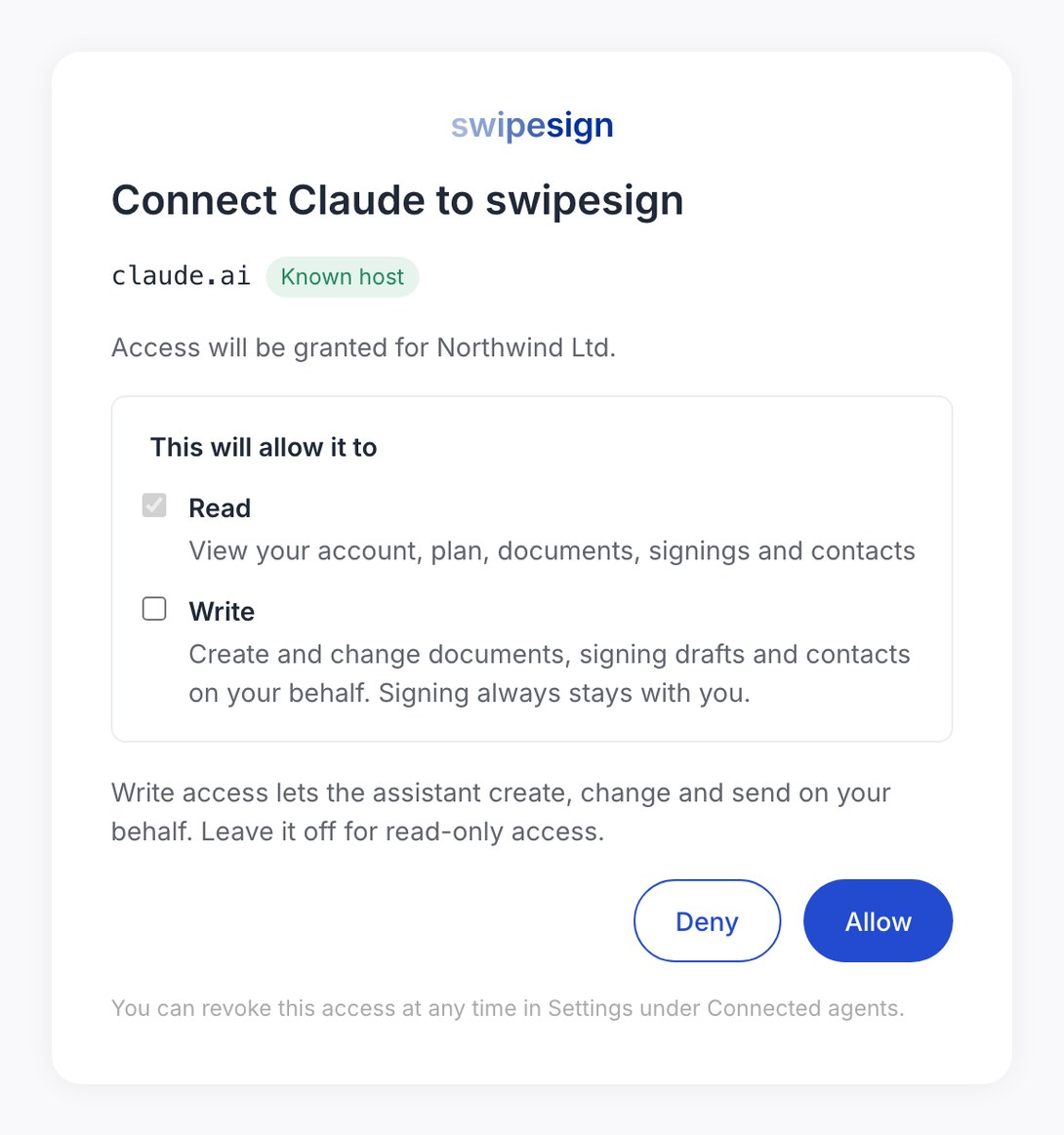
Nothing connects until you say so. The screen reads Connect Claude to swipesign, or whatever the client's called, shows the site it'll send you back to, and marks it Known host or Unverified host. It also names the organisation the access is for.
| Permission | What it lets the assistant do |
|---|---|
| Read | View your account, plan, documents, signings and contacts. Always on. |
| Write | Create and change documents, signing drafts and contacts, and send, on your behalf. Off until you tick it. |
If the screen says Unverified host and you didn't just start this connection yourself, click Deny.
See and revoke connected agents
The Connected agents card lists every assistant you've let in: its name, Read or Write, when you connected it, when it was last used and when the connection expires. With nothing connected it says No AI agents are connected yet.
Revoke disconnects it immediately. To use that assistant again, connect it anew.
What the status line means
| What the card says | What it means |
|---|---|
| Trial access until a date | Your organisation is on its free trial. Agents work fully until then. |
| Included in your plan | Your subscription covers it. |
| Access ended on a date, with Upgrade your plan | The trial is over. A connected agent can still read your account status and point you to the upgrade page, nothing more. |
| AI assistant access was disabled by swipesign | We've switched it off for your account. Contact support to get it back. |
When a connection ends
- You revoke it under Connected agents.
- An administrator suspends you. See Suspend or remove a team member.
- Your account is archived or moves to a different organisation.
After any of these the agent can't do anything more in your name. To use it again, connect it again.